
Getting started guide
From purchase to your first delivery
Ten simple steps, with the screens you will see. Your access opens as soon as you pay: allow about ten minutes to set everything up.
Choose your plan and pay
On relais360.com, Pricing section, click Subscribe. On Stripe's secure page, enter your company name, your email and your card.
- Essential: $50 a month, up to 150 shipments a month.
- Pro: $175 a month, unlimited shipments.
Your Relais 360 workspace is created automatically, the second your payment is confirmed.
Open the welcome email
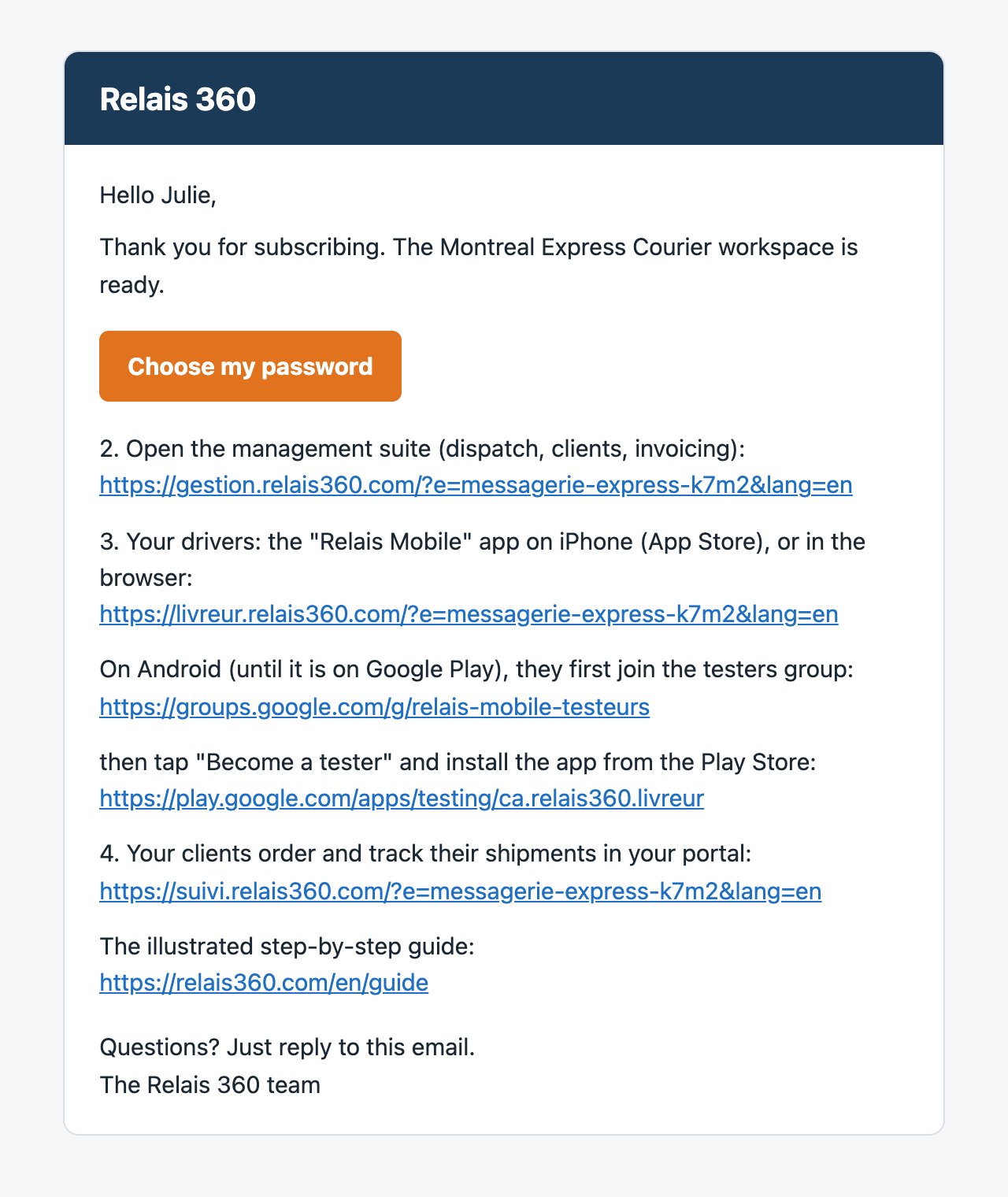
Within a minute, you receive "Welcome to Relais 360" (check your spam folder too). Click Choose my password.
Keep this email: it has the addresses of your three apps, the management suite, your drivers' app and your clients' portal.
Open the management suite and add your brand
Sign in with your email and your new password. In Settings, enter your company's name, phone number and address.
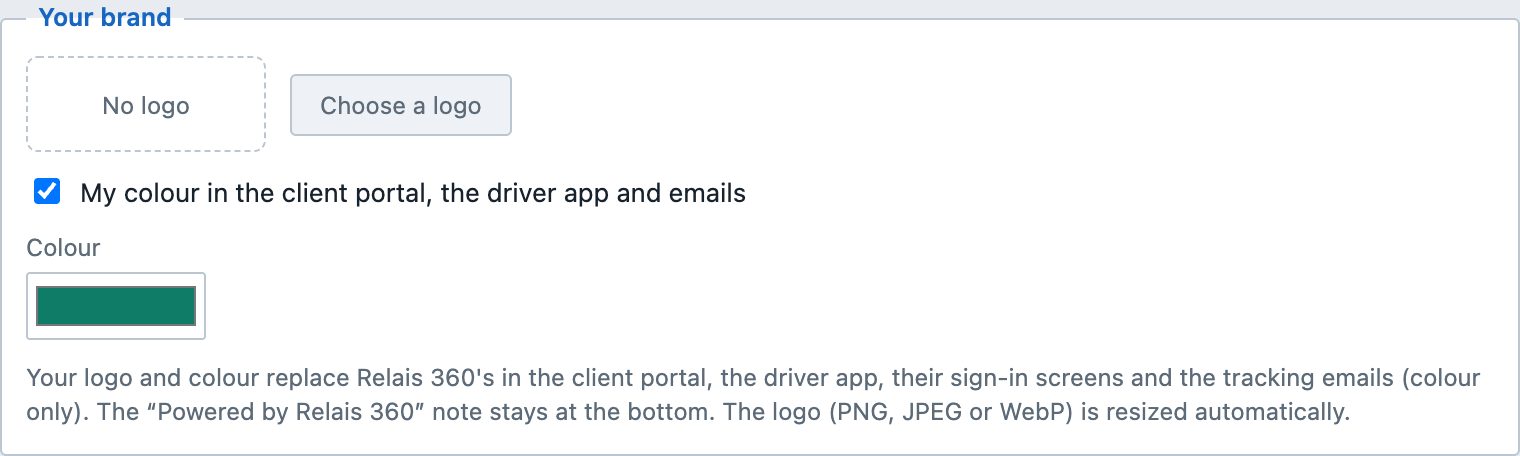
Under Your brand, add your logo and pick your colour: your clients and drivers will see them in their portal, their app and the tracking emails.
Add your drivers
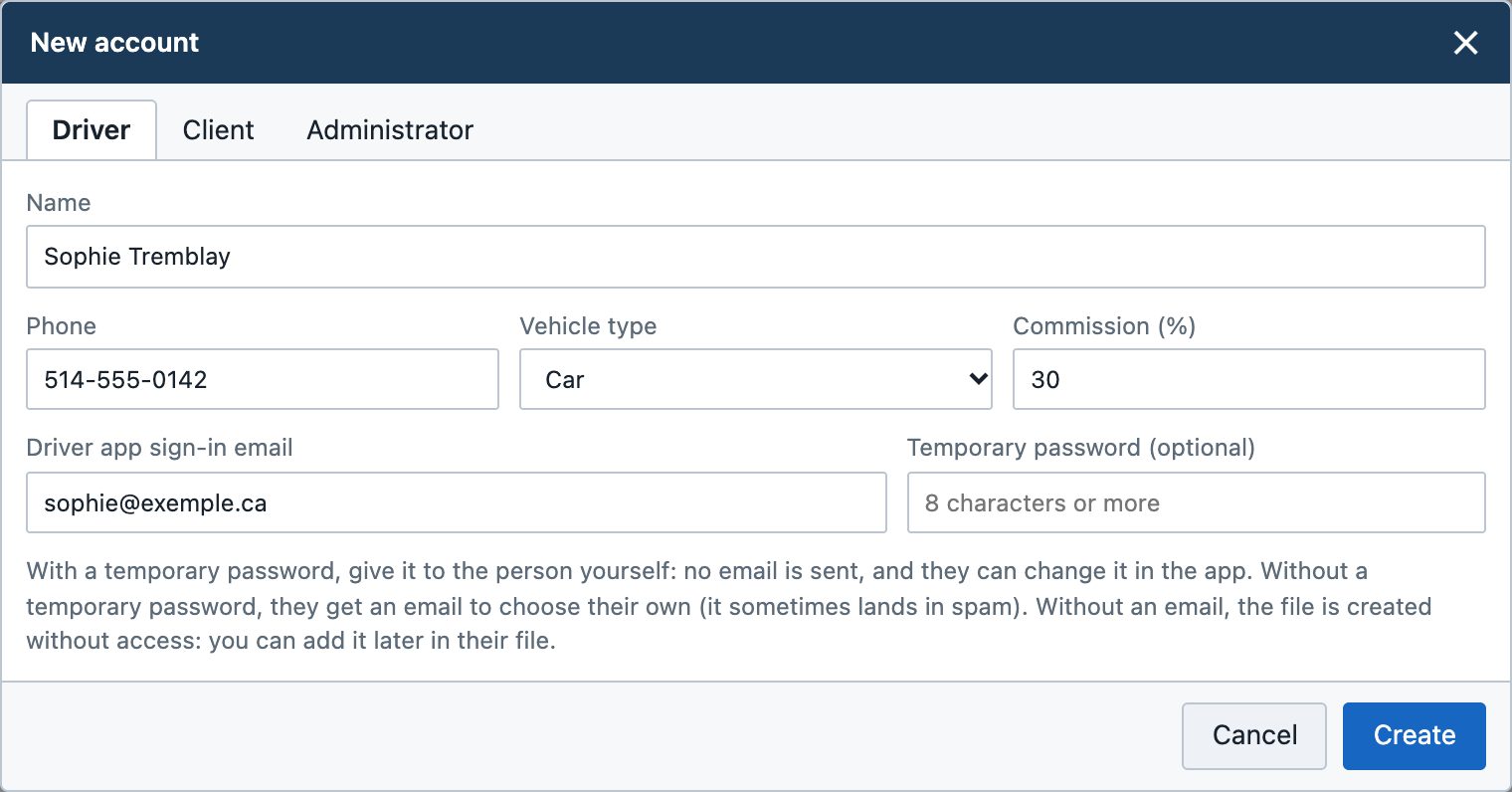
- Your account menu (your name, top right), then New account and the Driver tab. Or the Drivers and accounts page, New button.
- Enter their name, phone and email, then Create.
- They get an email to choose their password, open Relais Mobile on their phone (iPhone or Android) at livreur.relais360.com, sign in, then tap "Add to Home Screen": the app gets its own icon like any other. It is also coming to the App Store and Google Play.
They see their orders right away, with directions and each step to check off.
Add your clients
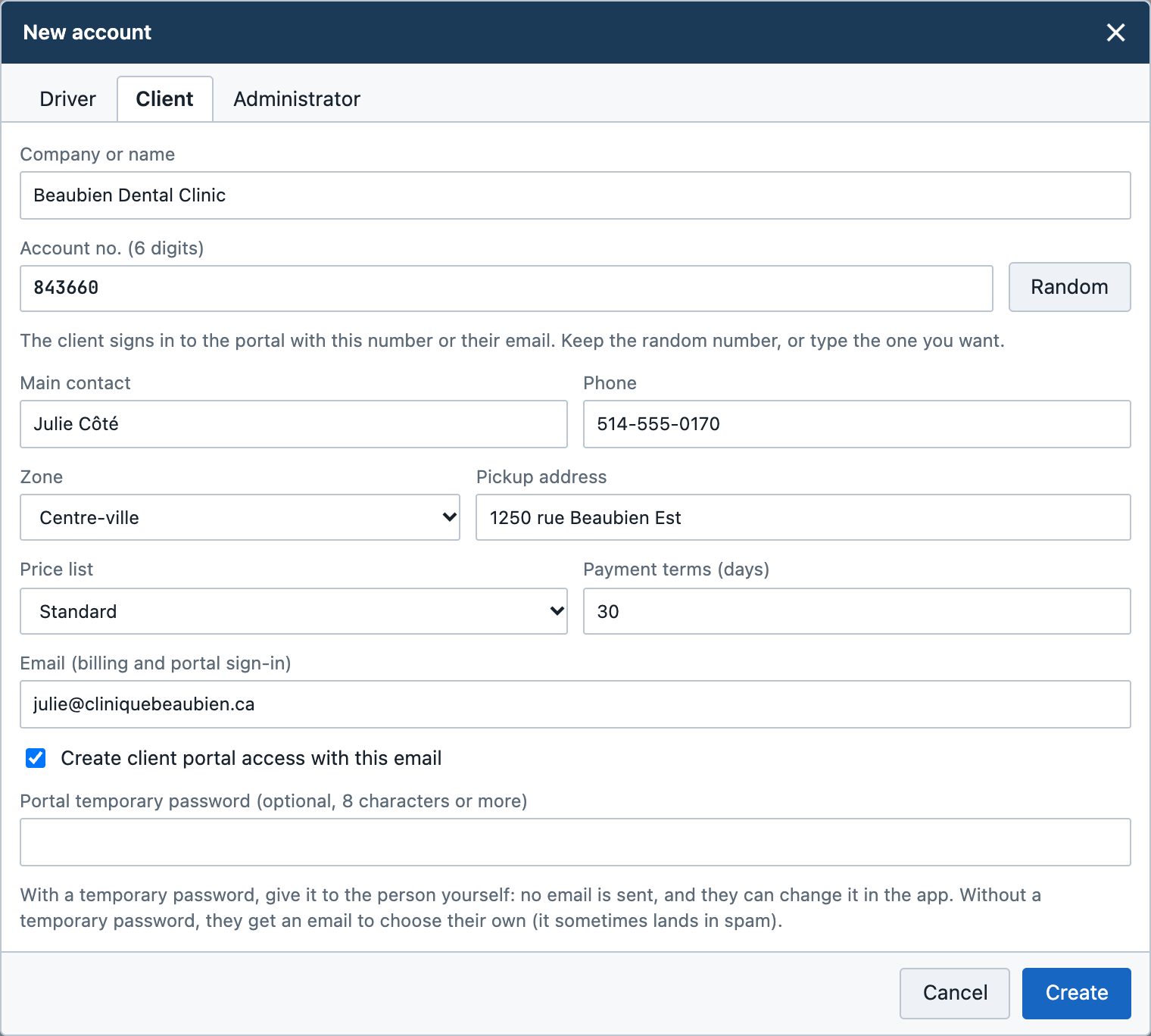
New account, Client tab: company name, contact and pickup address. The account number is picked for you.
Leave Create client portal access with this email checked: your client gets their access by email and can order and track shipments on their own.
Enter an order
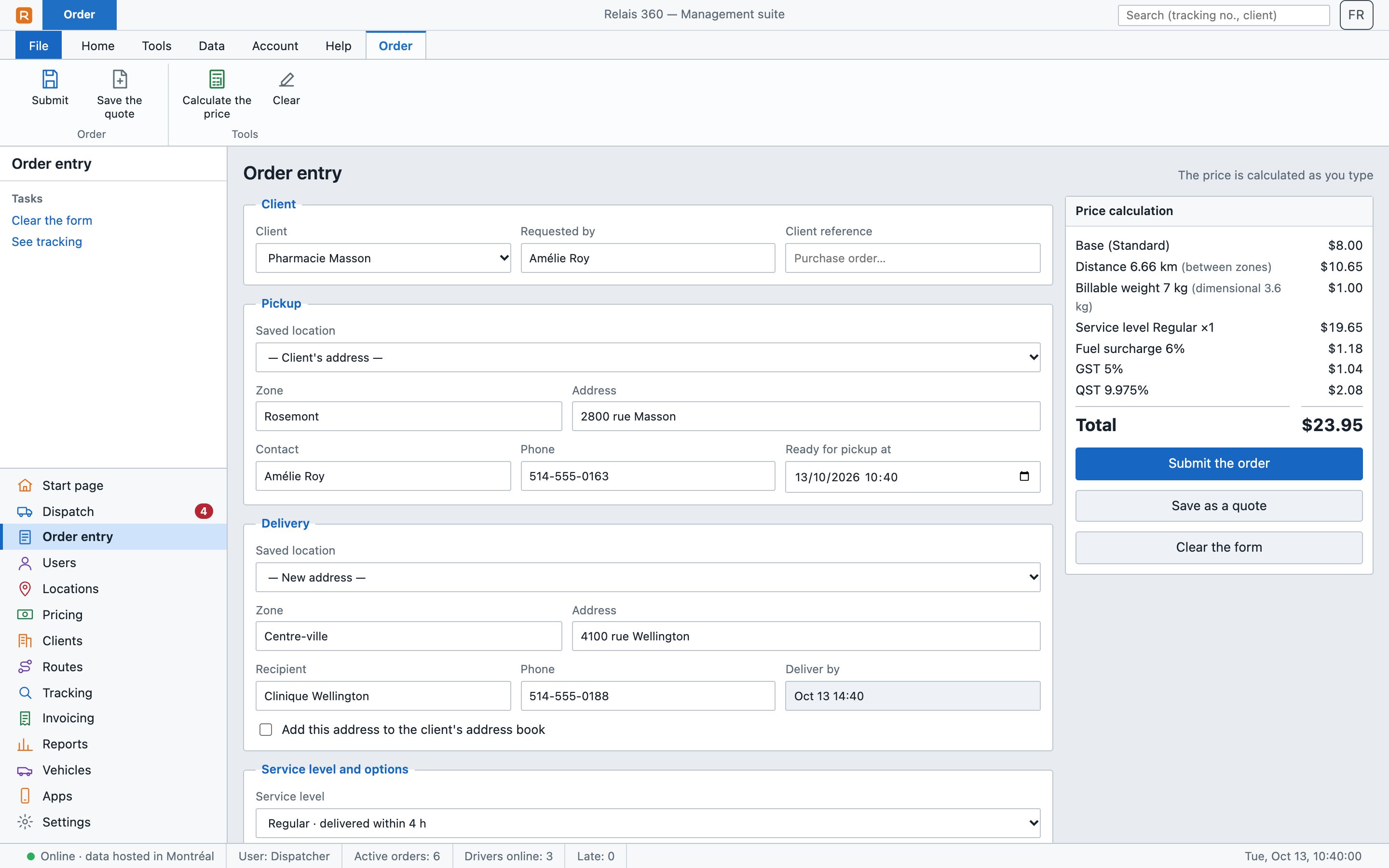
Order entry module: choose the client, the pickup and delivery addresses, the service level and the options.
The price is calculated live, with the road distance. Submit the order: it appears in dispatch right away. Your clients can also order on their own in their portal.
Assign it to a driver
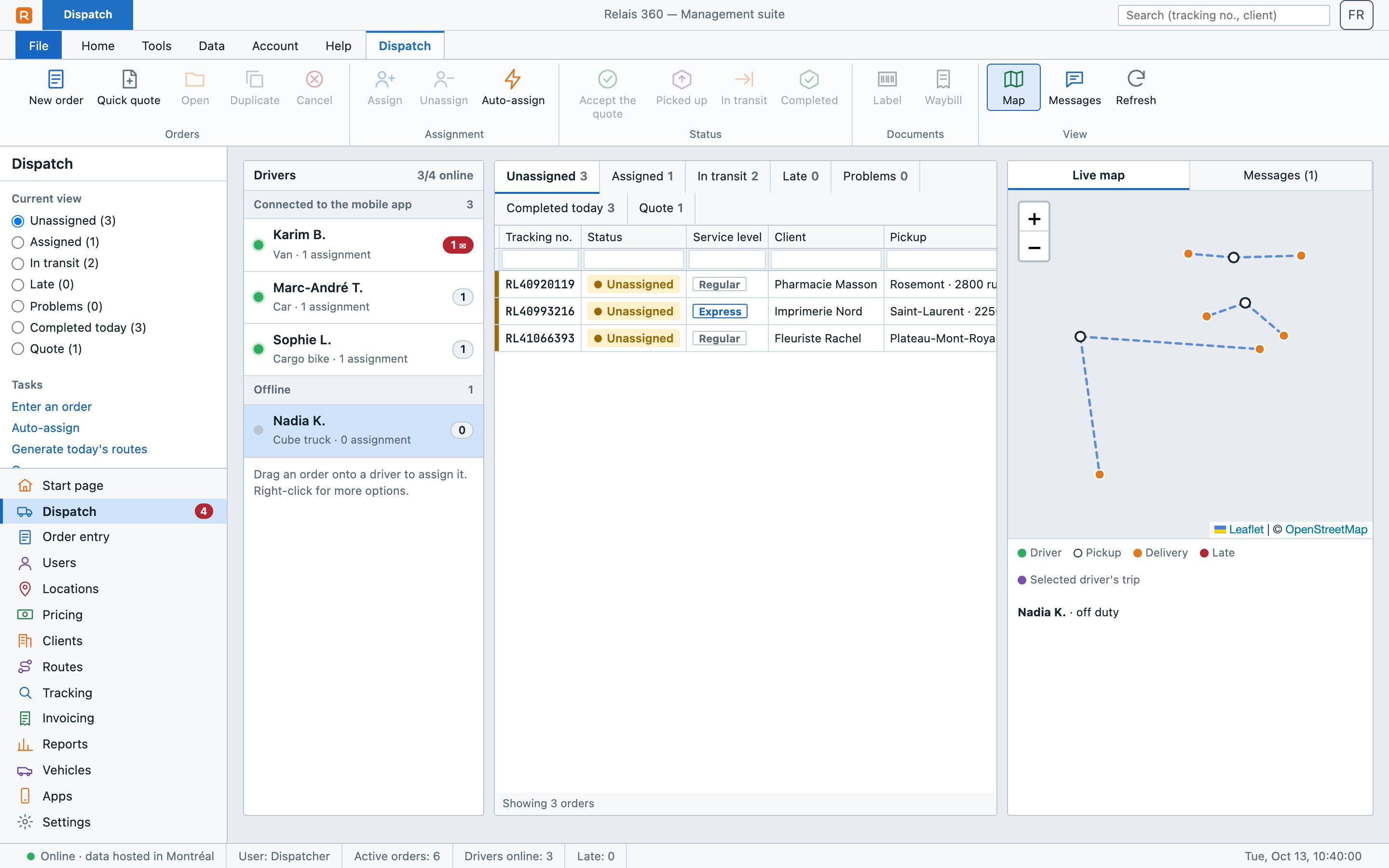
Dispatch module: drag the order onto a driver, or click Auto-assign to give each order to the nearest driver.
The map shows your drivers live; late orders and reported problems stand out in colour.
The driver picks up and delivers
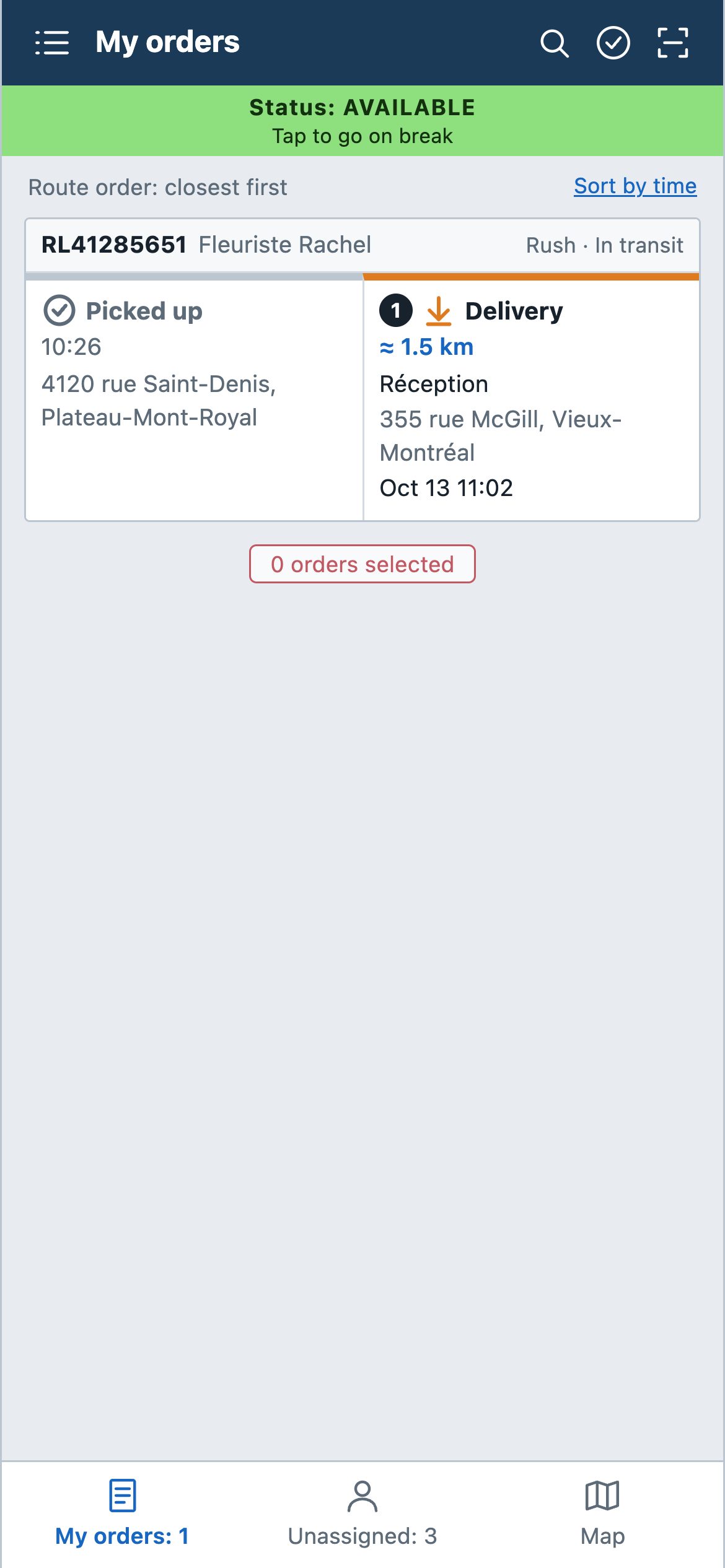
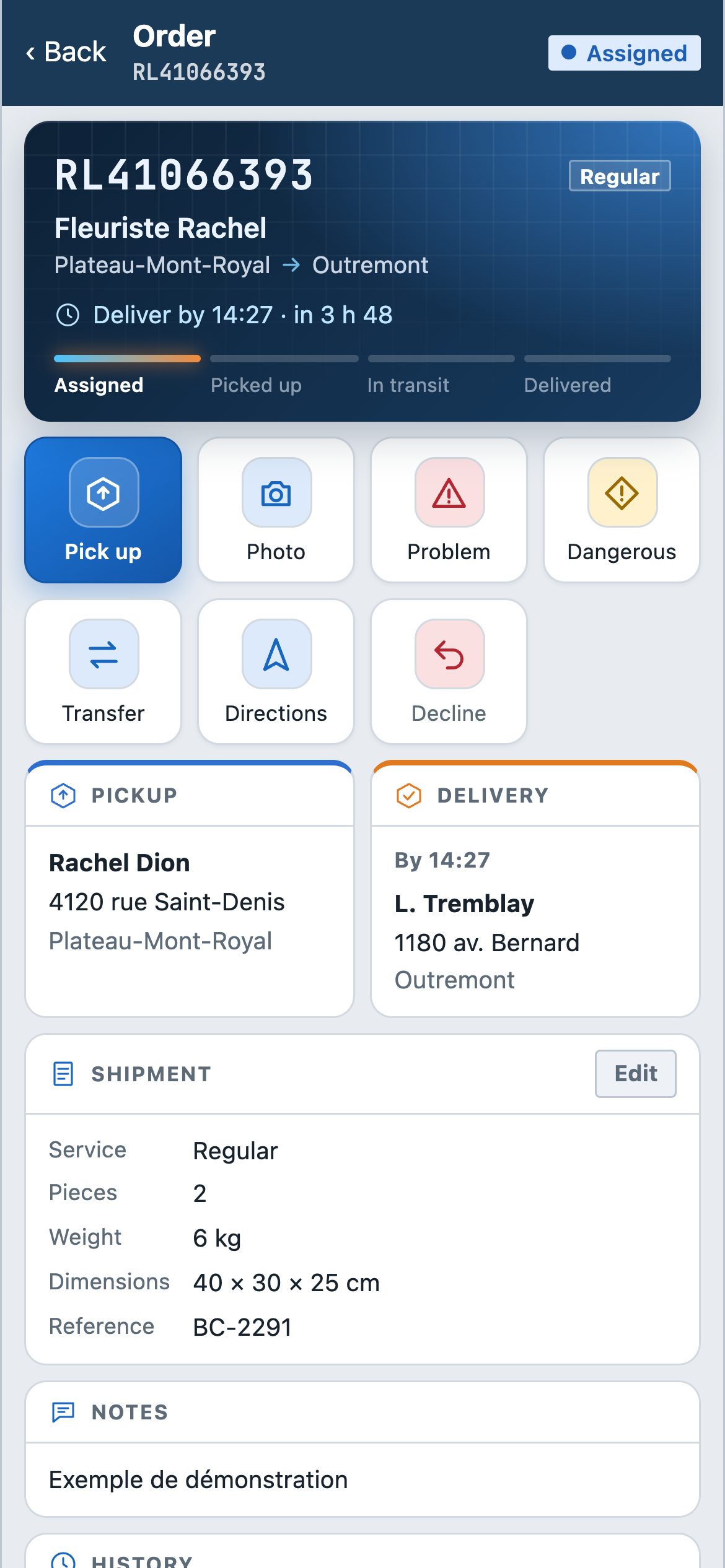
In Relais Mobile, the driver gets a notification, taps Pick up at pickup, then Deliver at the destination: a photo of the package, the signature or "left at the location", and it's confirmed.
In one tap, they open directions (Google Maps, Apple Maps or Waze), call the client, report a problem (closed, nobody there…) or dangerous goods, or hand the order to a colleague.
Your client follows everything, live
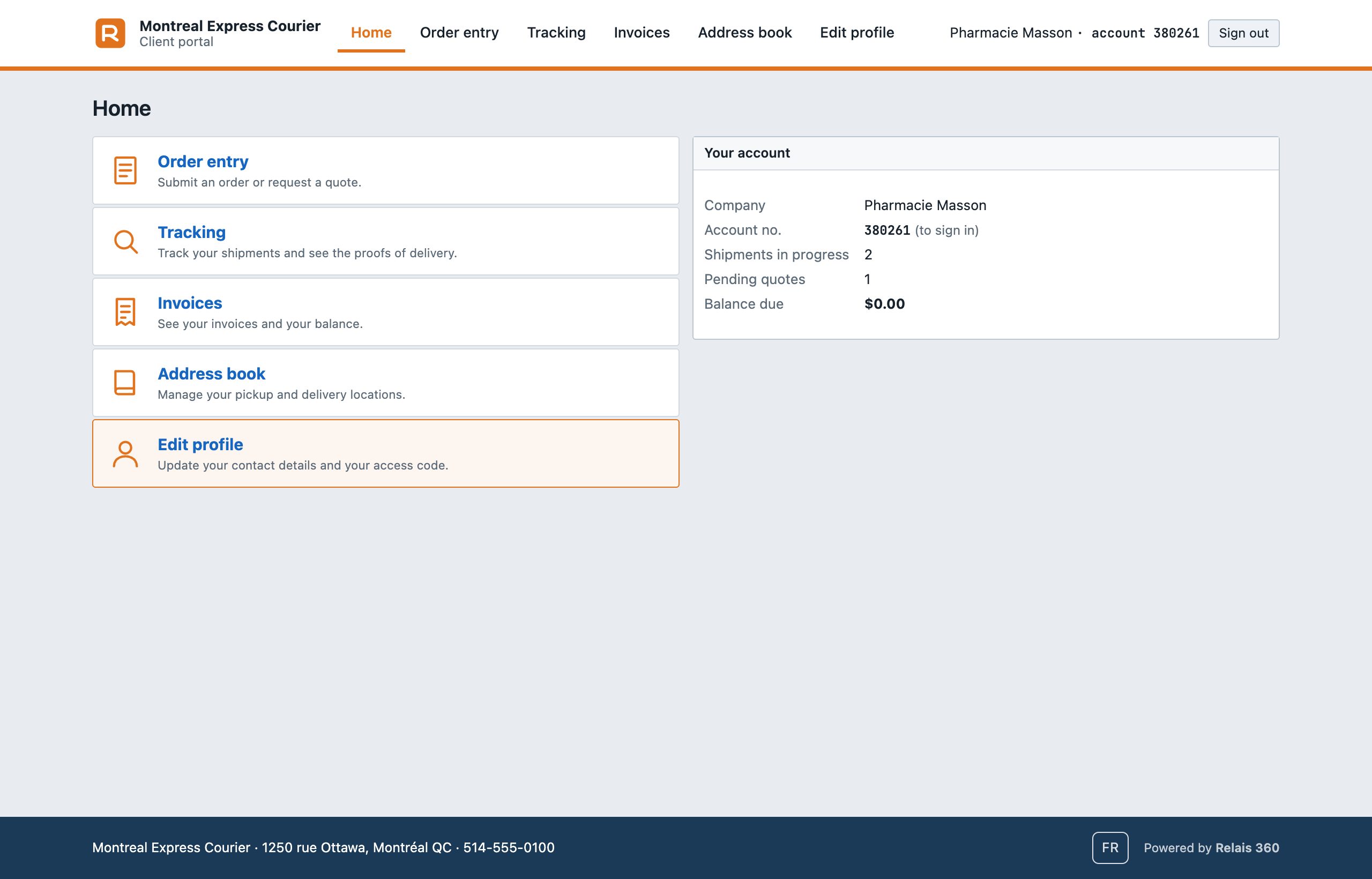
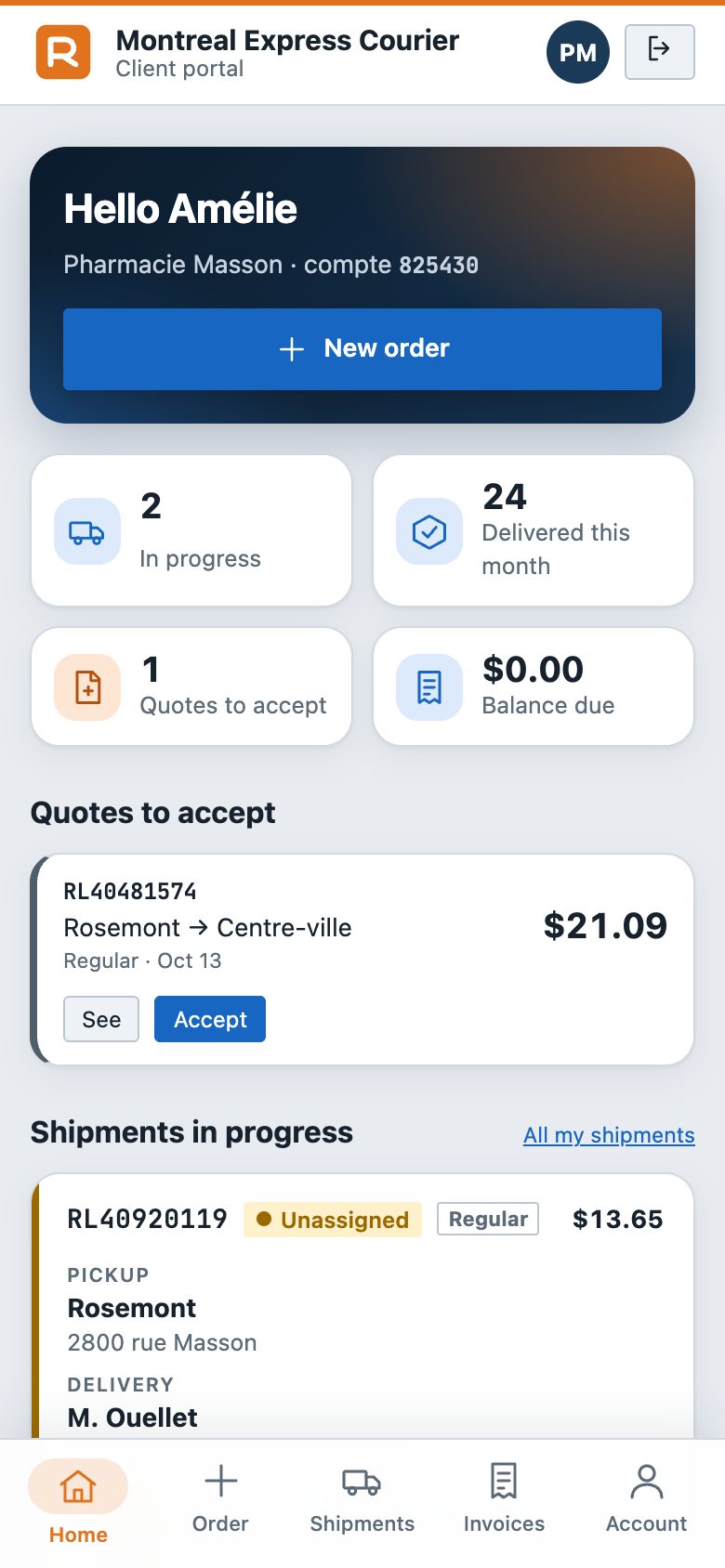
In their portal, your client sees each shipment's progress (received, assigned, picked up, delivered), accepts quotes and finds their proofs of delivery and invoices.
They also get an email at pickup and at delivery, with your name and your colour.
Invoice
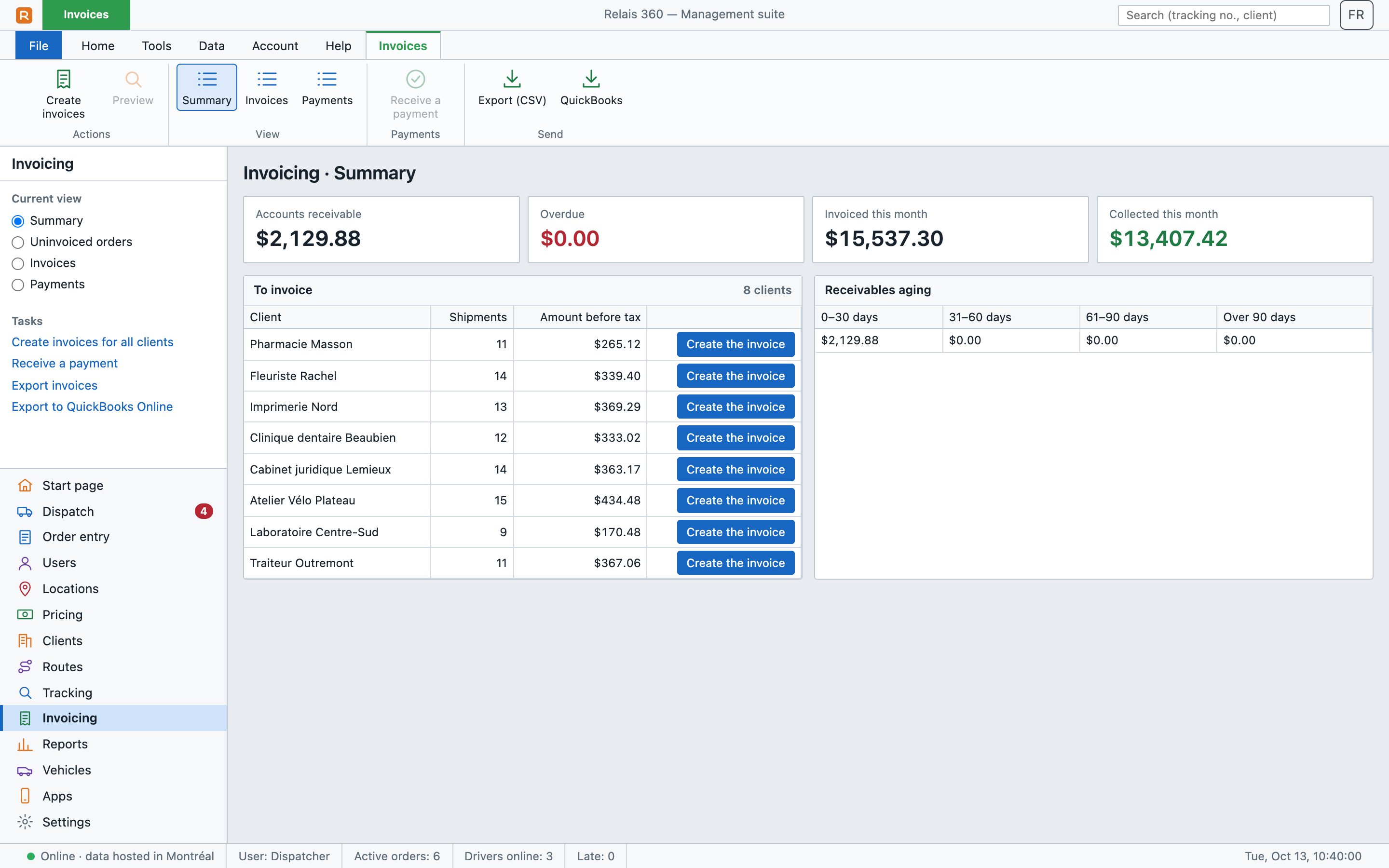
Invoicing module: group each client's delivered shipments on an invoice, with GST and QST. Print or send it, track payments, and export everything to QuickBooks Online.
Would you rather watch it?
A full tour of Relais 360, from order to invoice. Questions? Email us at admin@relais360.com.